

Accept and fulfill
Pack up the customer's order and notify them it's ready for pickup
Once you've checked that all the items in the order are available and they've been packed up, mark the order as fulfilled.
-
In the admin portal, navigate to
Orders > Orders Listing -
Click on the
VIEWbutton of the order you're fulfilling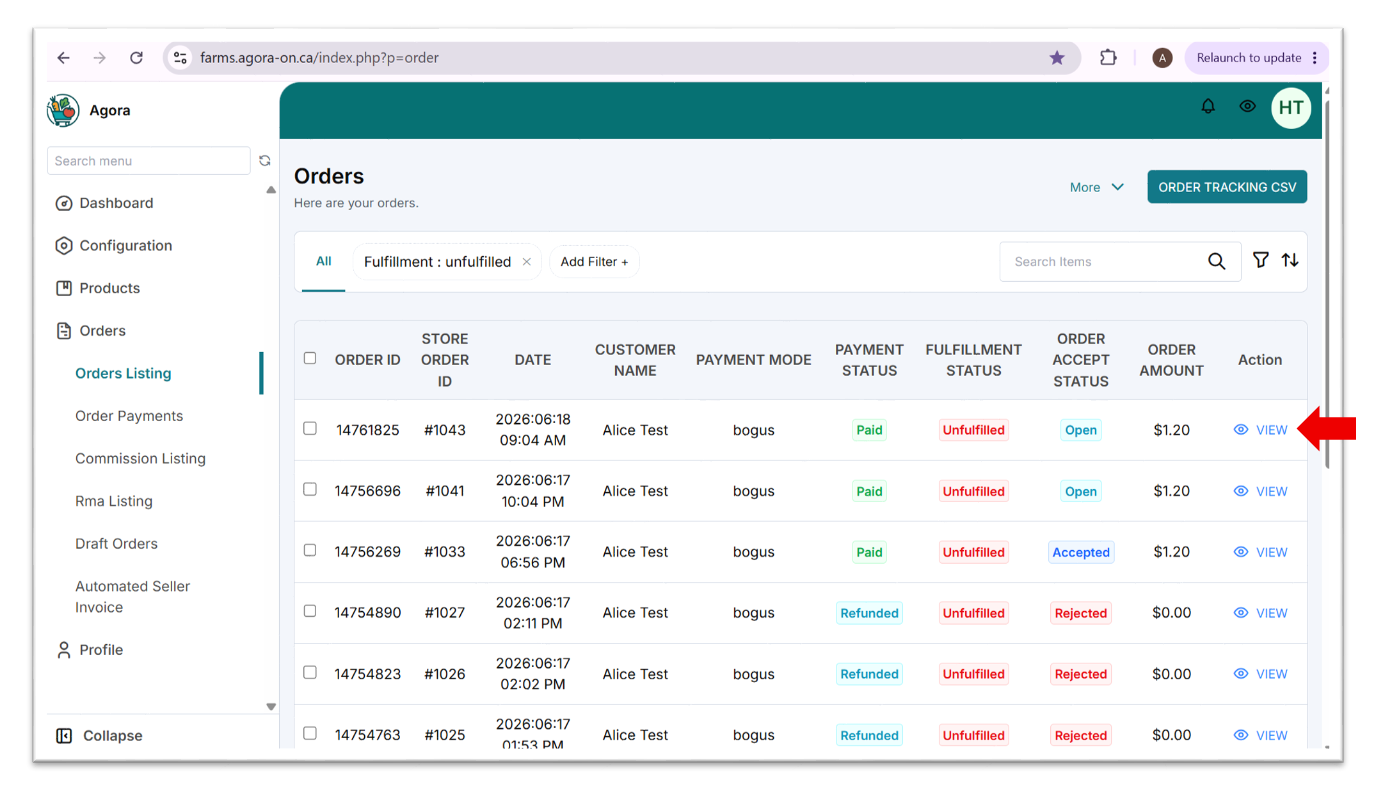
-
Click
ACCEPT AND FULFILL ORDERand thenAccept Order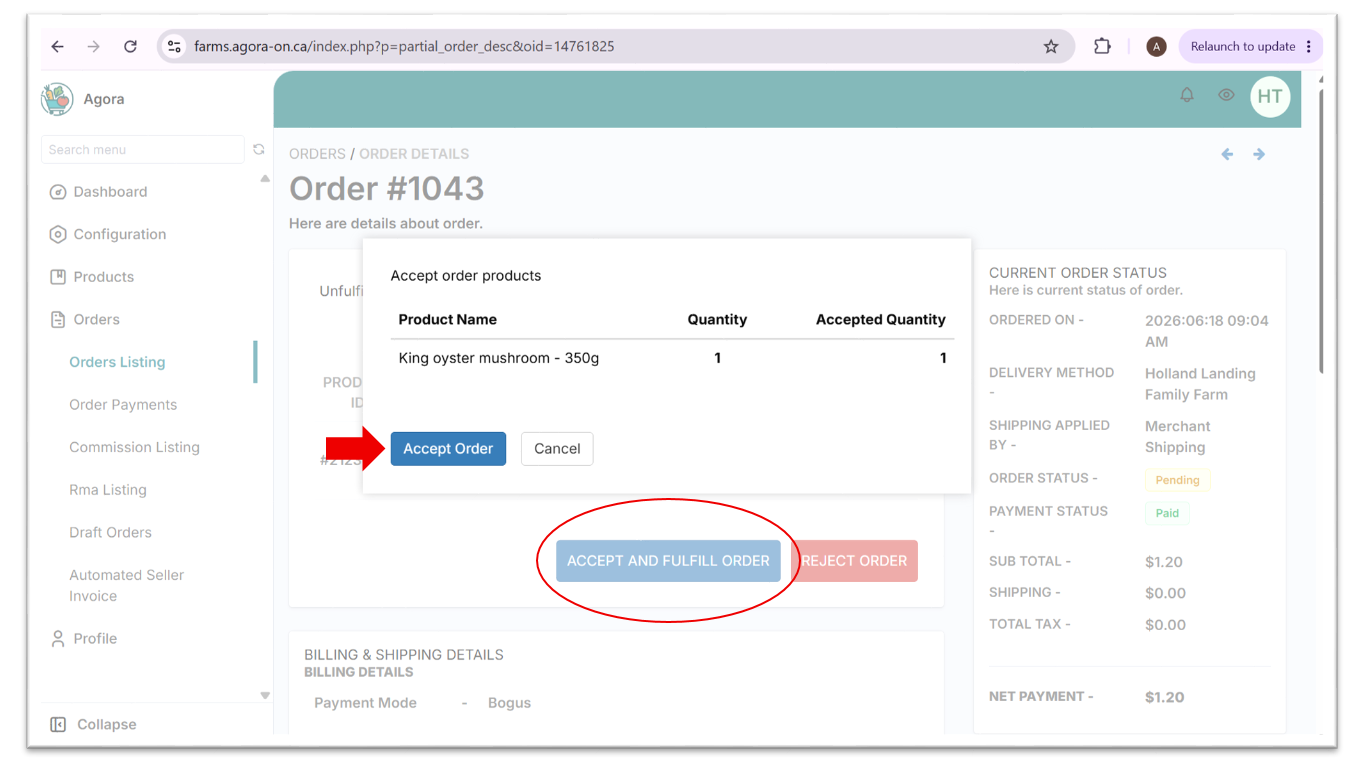
-
Click
FULFILL NOWand thenFulfill Items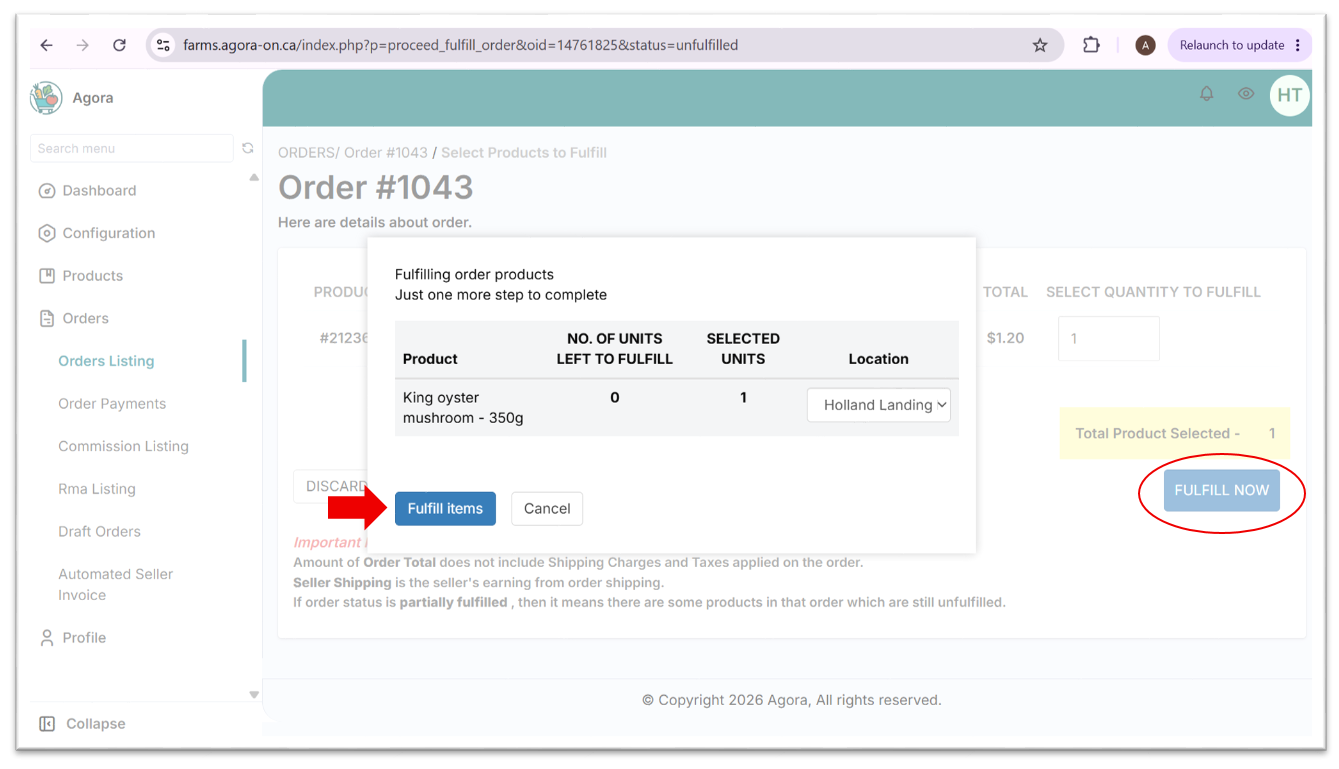
-
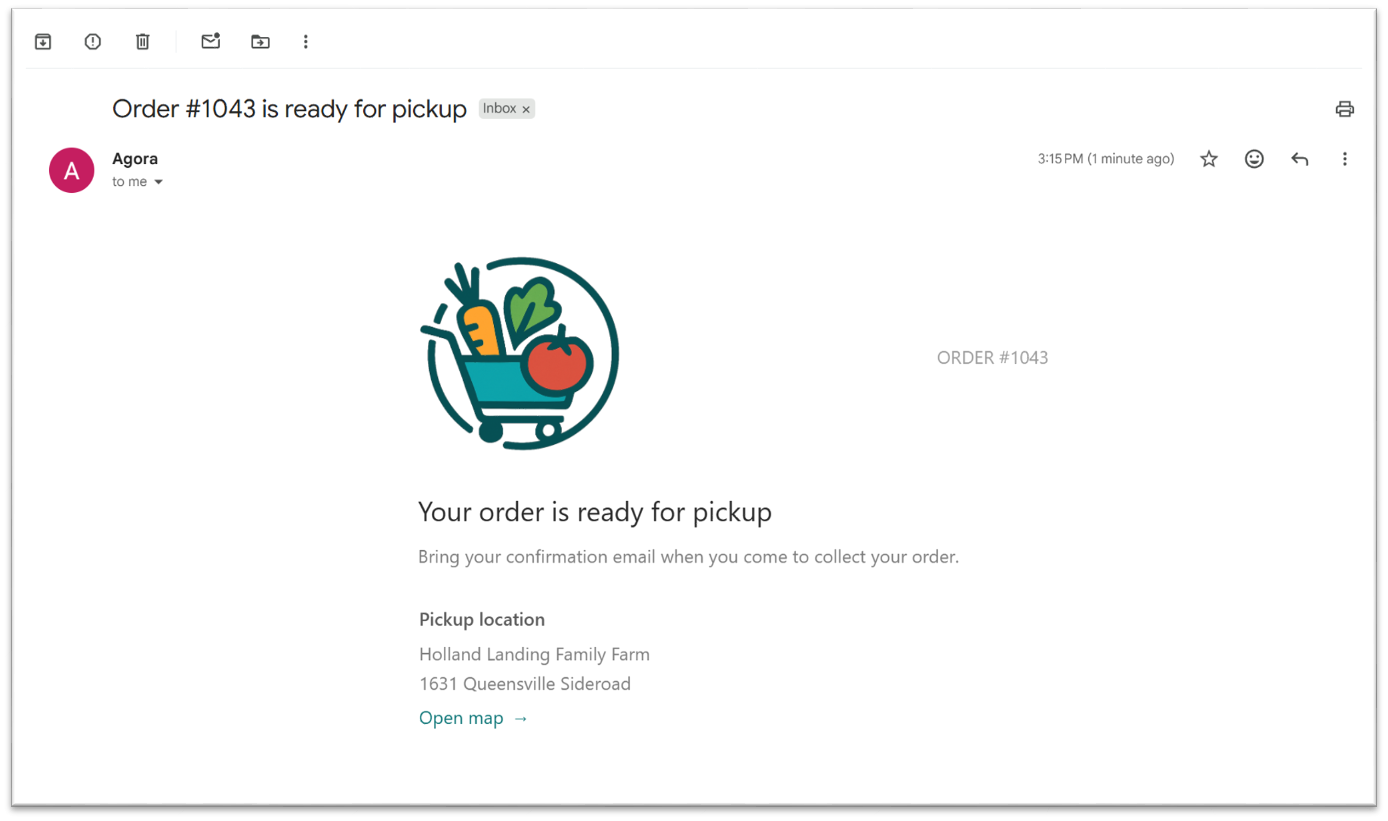
The customer will receive an email notification that their order is ready for pickup. Set their order aside and wait for them to arrive!
Partial order fulfillments aren't supported currently.
If part of an order can't be fulfilled, please contact the customer to discuss possible substitutions. Otherwise, please reject and cancel the order in order to process a refund.
Updated 4 months ago