

Add variant
Specify different variants a product can come in (e.g., variety, colour, size, weight)
You can see an example of how variants appears on the storefront here: Storefront > Product with variants.
When adding a product
-
From the
Add Productpage in the admin portal, click onADD VARIANT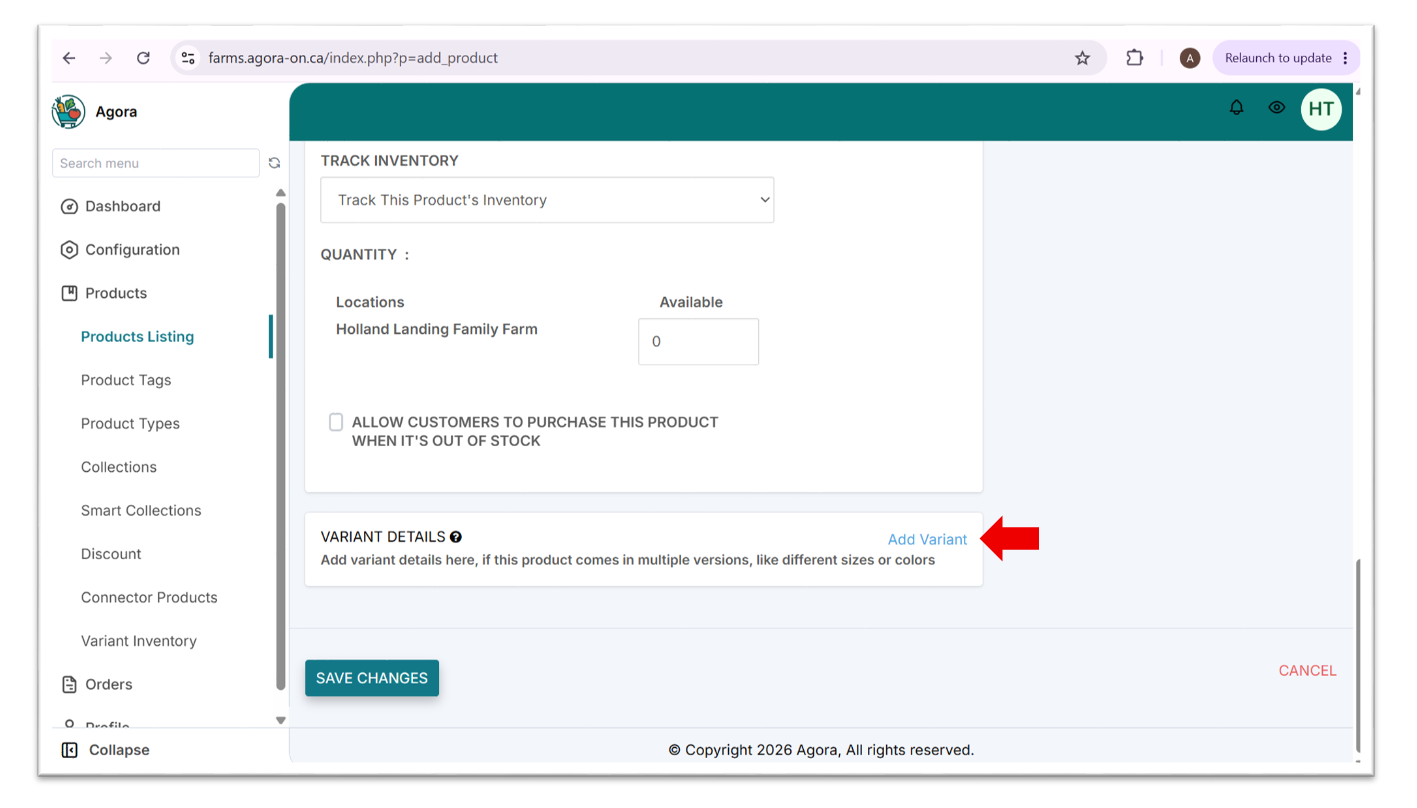
-
Fill in the required fields
-
Option name- the variant category, e.g., variety, colour, size -
Option values- the variant options, e.g., 5lbs, 10lbs, 20lbs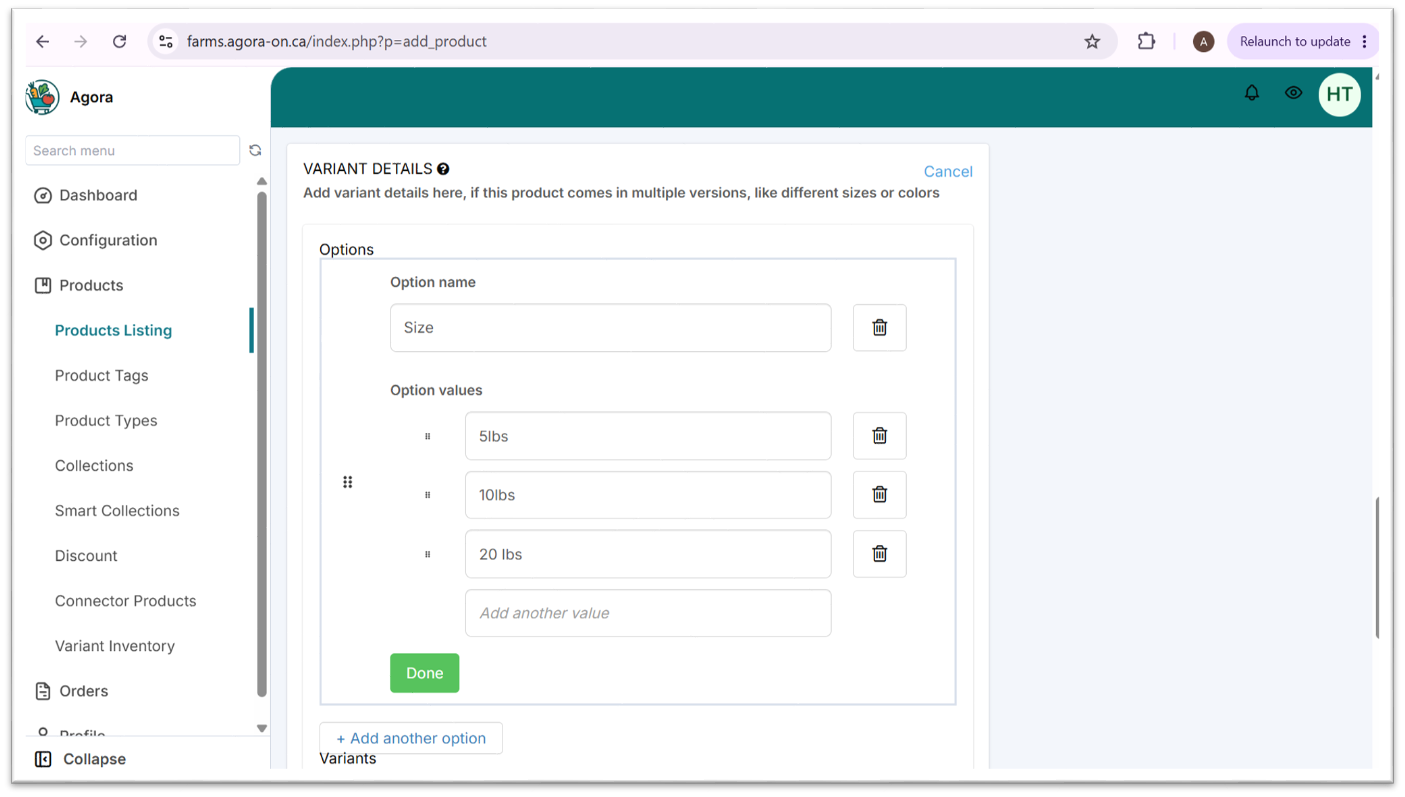
-
Click
Done
-
-
Click
SAVE CHANGES -
To adjust the details of each variant (e.g., price, quantities), follow the instructions under Edit variant
When editing a product
-
From the
Edit Productpage, click onADD VARIANT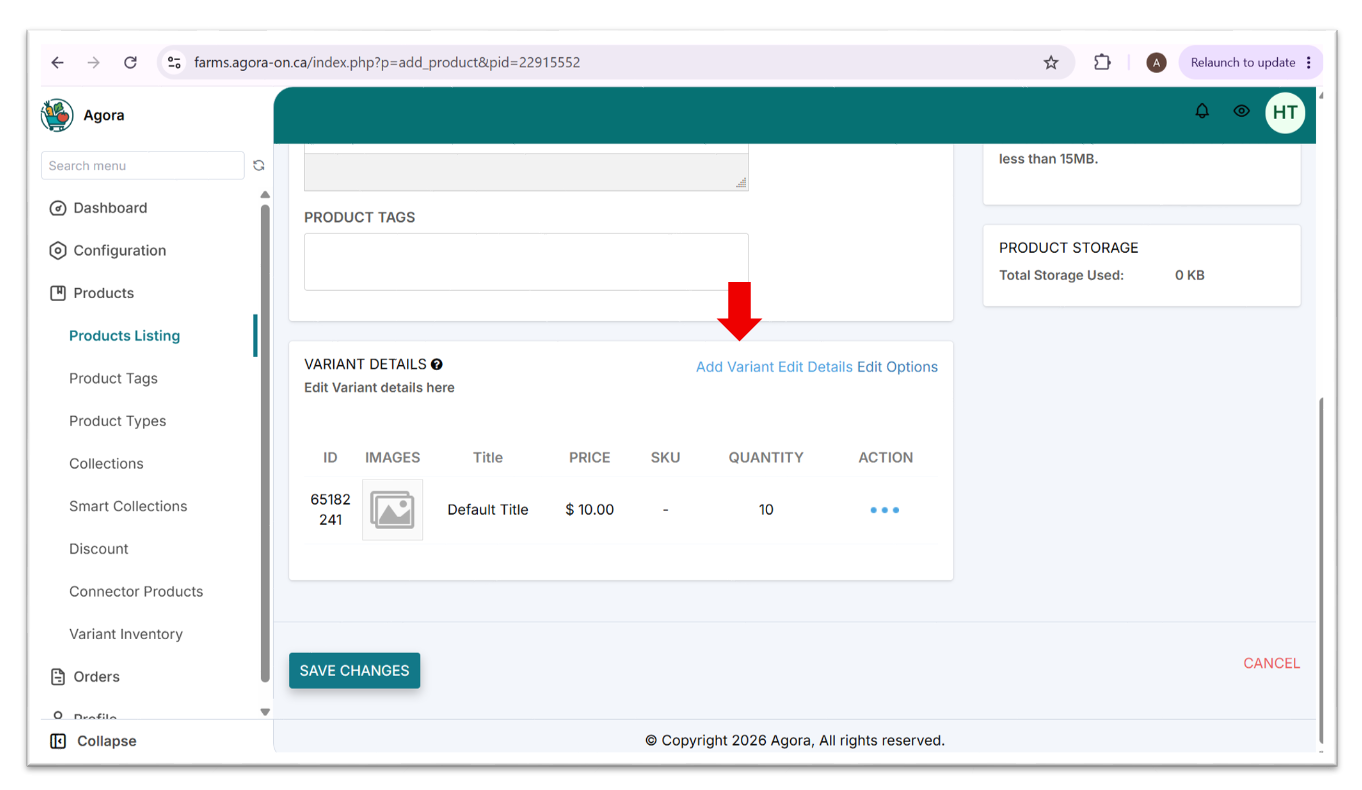
-
Fill in the fields
TITLE- the variant option, e.g., 5lbs, 10lbs, 20lbsPRICE- the amount you'd like to be paid for the variantCOMPARE AT PRICE- (optional) the original price if the current price is discounted (this will add aSalelabel to the product in the storefront)SALES PRICE- the price that will be displayed to customers (auto-calculated based on thePRICEyou set plus the platform markup)CHARGE TAXES ON THIS PRODUCT- select based on whether the product is subject to sales taxSKU- (optional)BARCODE- (optional)TRACK INVENTORY- leave the default as 'Track This Product's Inventory'
Do not change
TRACK INVENTORYto 'Don't Track Inventory'. Customers will not be able to purchase the product for pickup.QUANTITY-
Locations- check off your farm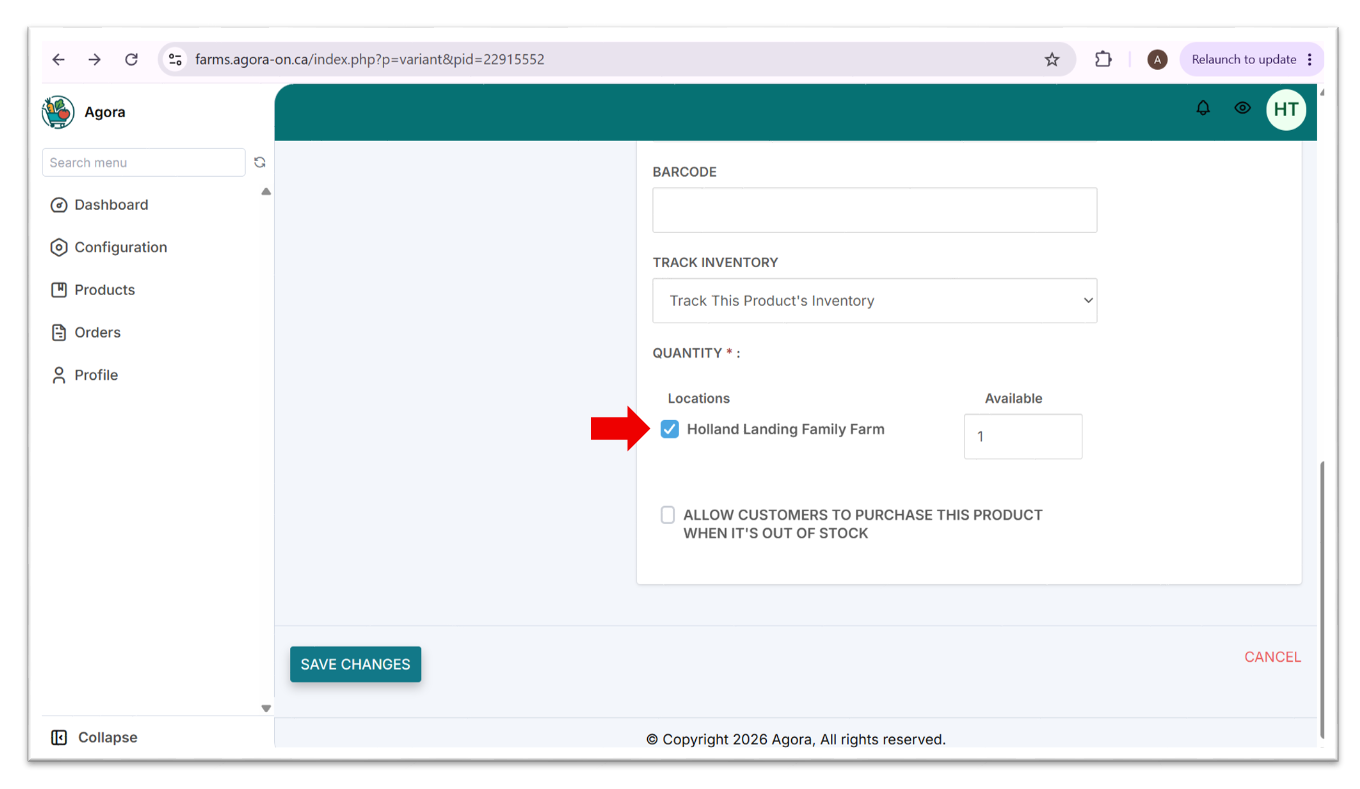
-
Available- the number of units available for sale
If you don't actively track inventory quantities, set
AVAILABLEto a very high number and be sure to deactivate the product listing soon as it sells out.
-
-
Click
SAVE CHANGES
Updated 4 months ago