
Add product
List the products you want to sell on the marketplace - from produce, preserves, and prepared foods to events, and services
You can see an example of how a product appears on the storefront here: Storefront > Product.
-
In the admin portal, navigate to
Products > Listing -
Click on
ADD PRODUCT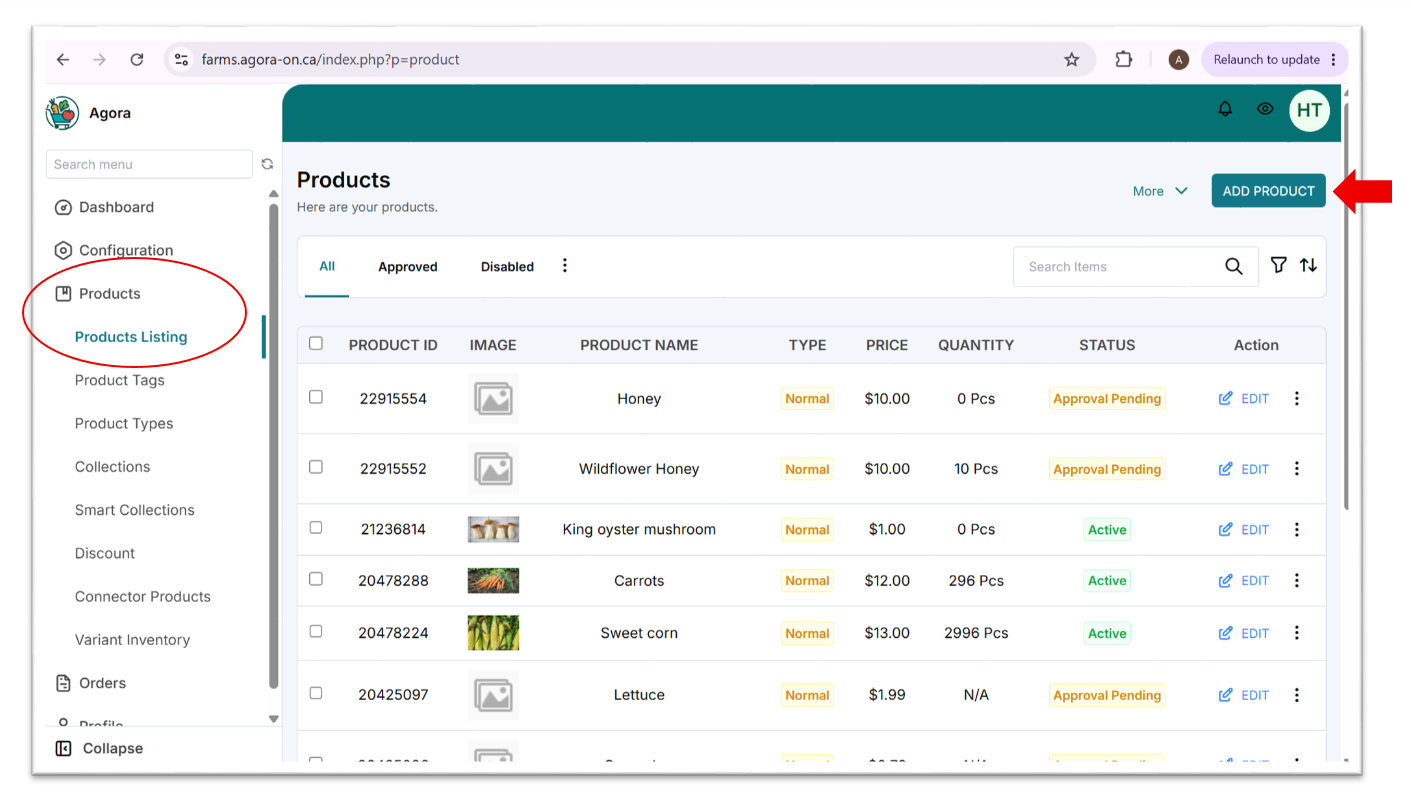
-
Upload a photo of the product under
PRODUCT IMAGE -
Fill in the fields
PRODUCT NAME- name of the productIf the product is for pre-order, indicate that in the name, e.g., Sweet corn (Pre-order for August).
DESCRIPTION- brief description of the productPRICE- the amount you'd like to be paid for the productCOMPARE AT PRICE- (optional) the original price if the current price is discounted (this will add aSalelabel to the product in the storefront)SALES PRICE- the price that will be displayed to customers (auto-calculated based on thePRICEyou set plus the platform markup)CHARGE TAXES ON THIS PRODUCT- select based on whether the product is subject to sales taxSKU- (optional)BARCODE- (optional)TRACK INVENTORY- leave the default as 'Track This Product's Inventory'
Do not change
TRACK INVENTORYto 'Don't Track Inventory'. Customers will not be able to purchase the product for pickup.QUANTITYLocations- your farm should be selected by defaultAvailable- the number of units available for sale
If you don't actively track inventory quantities, set
AVAILABLEto a very high number and be sure to deactivate the product listing soon as it sells out.
-
VARIANT DETAILS- if you want to sell different variants of this product (e.g., different varieties, colours, sizes, units), follow the steps for adding a variant -
Click
SAVE CHANGES. You'll received a🥕 Product activatedemail once your product listing has been reviewed by the Agora team and is live on the storefront!
Updated 4 months ago